Phone setup
Add NomadBadge to your phone Home Screen
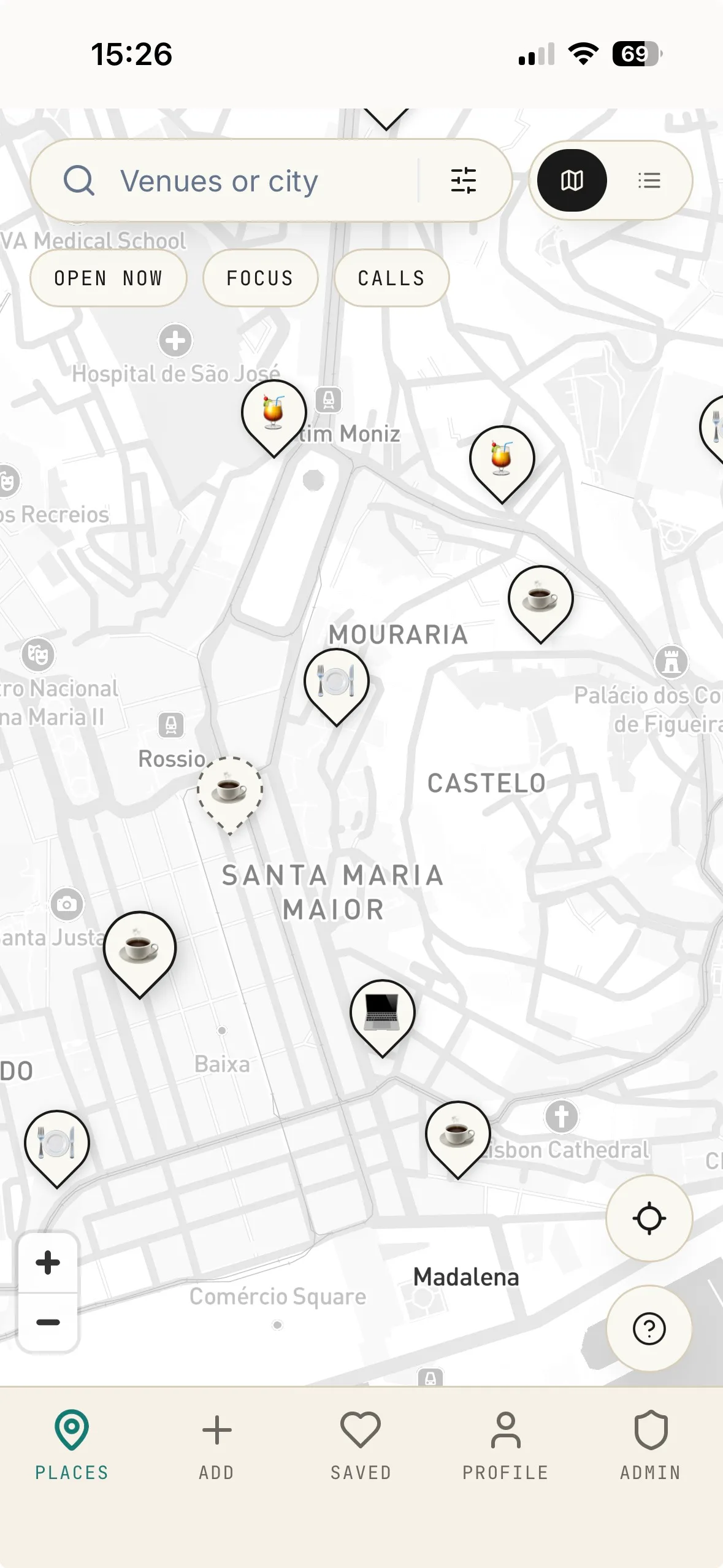
Open NomadSpots at /app first. Then use Safari's Share menu on iPhone or Chrome's menu on Android to save the working app view, not the landing page.
By Tim & Thomas 4 min read Updated 13 Jul 2026
The short answer
How do you add NomadBadge to your phone?
To save NomadBadge properly, open https://nomadspots.app/app first. Then use Safari's Share sheet on iPhone or Chrome's menu on Android to add it to your Home Screen. The saved icon should open the map and workspace guide directly.
iPhone
How do you add NomadBadge on iPhone?
Use Safari. Apple documents the Home Screen action inside Safari's Share menu.
- 1
Open Safari on your iPhone.
- 2
Go to https://nomadspots.app/app.
- 3
Tap the Share button.
- 4
Scroll and tap Add to Home Screen.
- 5
Check the name, then tap Add.
Android
How do you install NomadBadge on Android?
Use Chrome. Google documents the web app install flow from the browser menu.
- 1
Open Chrome on your Android phone.
- 2
Go to https://nomadspots.app/app.
- 3
Tap the three-dot menu next to the address bar.
- 4
Tap Add to home screen or Install app.
- 5
Follow the prompt and place the icon.
Reference
Where do these steps come from?
The phone vendors document the basic Home Screen and web app install actions. The NomadBadge-specific part is opening /app first.
FAQ
Questions people ask before saving a web app
How do I add NomadBadge to my iPhone Home Screen?
Open NomadBadge at /app in Safari, tap the Share button, choose Add to Home Screen, keep the name NomadBadge, then tap Add. Open /app first so the saved icon launches the working guide instead of the landing page.
How do I install NomadBadge on Android?
Open NomadBadge at /app in Chrome, tap the three-dot menu, choose Add to home screen or Install app, then follow the prompt. Android uses the web app manifest, so the installed icon should open the app view.
Why should I open /app before saving it?
Because the landing page is the public explanation and /app is the actual workspace guide. Saving /app makes the icon useful when you are walking around a city and need the map quickly.
Does this install anything from the App Store or Play Store?
No. This saves the web app to your phone. It behaves like an app icon, but it still updates from the web and does not require an App Store or Play Store download.
Can I remove the NomadBadge icon later?
Yes. On iPhone, remove it like a normal Home Screen icon. On Android, long-press the icon or use Android app settings, depending on how Chrome installed it.
Keep using it
The icon is useful only if it opens the guide
A Home Screen shortcut should remove friction when you are outside with a laptop bag, not send you back through the marketing page.
install this
Open the app
Start here before adding NomadBadge to your phone Home Screen.
Open pageorigin story
Why fresh workspace notes matter
The reason this should be one tap away when you arrive somewhere new.
Open pagecommunity
Help build NomadBadge
How users can report bugs, request features, and add better field notes.
Open pageStart here
Open /app, then save the icon.
That one detail is what makes the Home Screen shortcut feel like an app instead of another saved website.